Courses

Notepad Complete

Notepad is a simple text-editing program in Windows used to create, edit, save, and read plain-text files.…

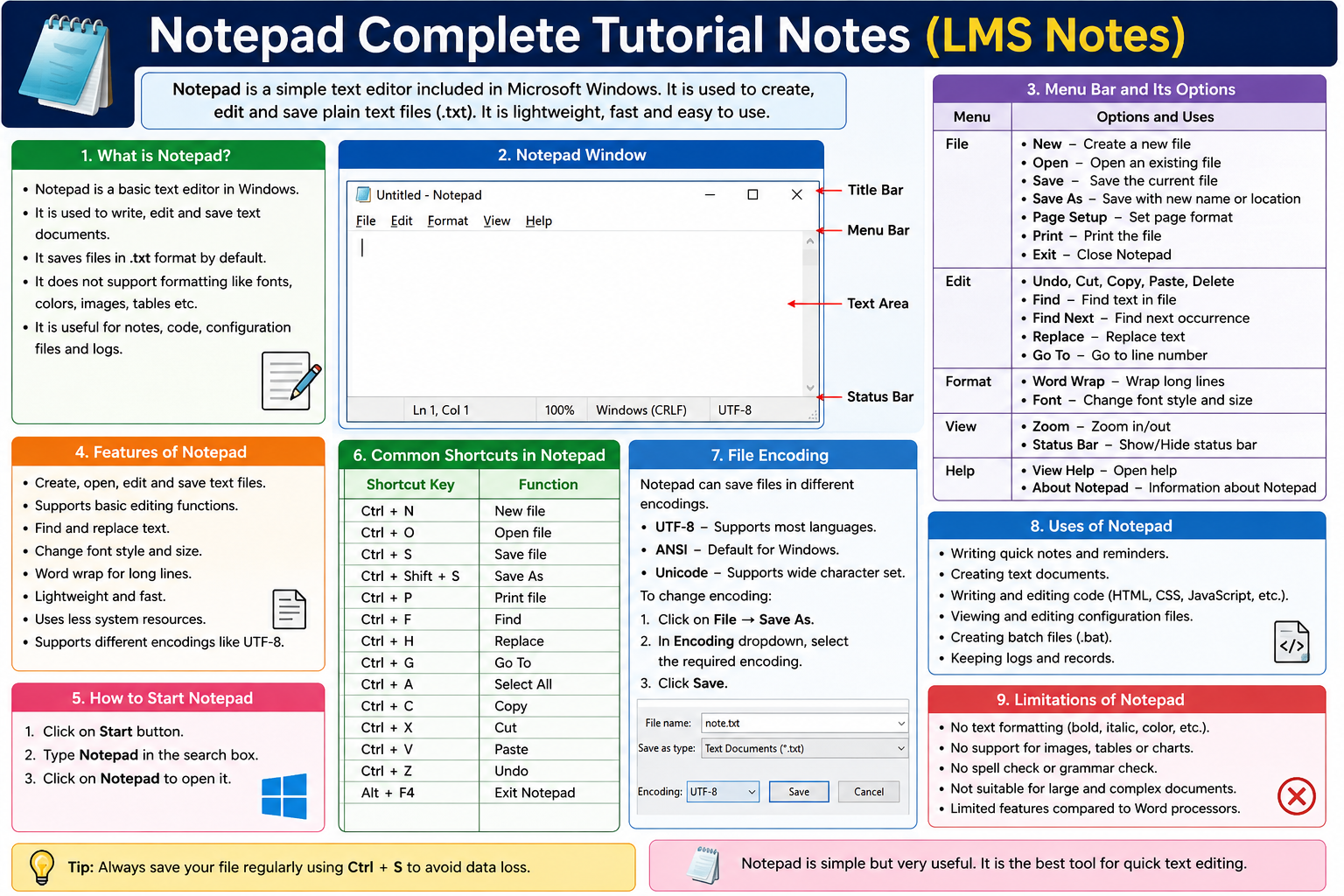
Notepad is a simple text-editing program in Windows used to create, edit, save, and read plain-text files. These tutorial notes cover Notepad’s basic tools, menus, features, shortcuts, file handling, and practical uses.

Course Curriculum

Chapter 1: Introduction to Notepad
Notepad is a simple and lightweight text-editing application provided with Microsoft Windows. It is mainly used to create, open, edit, and save plain-text files. Notepad has a simple interface with basic features such as typing, copying, cutting, pasting, finding, replacing, and word wrapping. It generally saves files in .txt format and does not provide advanced formatting options like images, tables, fonts, or page designs. Notepad is useful for writing notes, creating simple text documents, viewing configuration files, and writing basic code or HTML.

  • Introduction to Notepad

Chapter 2: Features of Notepad
Notepad provides basic text-editing features such as creating, opening, editing, saving, copying, cutting, pasting, finding, and replacing text. It is lightweight, fast, easy to use, and supports plain-text files such as .txt.

Chapter 3: Starting Notepad
Starting Notepad is easy in Windows. Click the Start button, type Notepad in the search box, and click the Notepad app to open it. You can then create and edit text documents.

Chapter 4: Notepad Interface
The Notepad interface is simple and user-friendly. It includes the Title Bar, Menu Bar, Text Area, Scroll Bar, and Status Bar, which help users create, edit, view, and manage text documents easily.

Chapter 5: Creating a New Document
To create a new document, open Notepad and select File → New. A blank document will appear where you can type text.

Chapter 6: Typing Text
Users can type letters, numbers, symbols, and sentences directly into the text area. Notepad is useful for creating simple text documents.

Chapter 7: Opening a File
Use File → Open or Ctrl + O to open an existing text file. Select the required file and click Open.

Chapter 9: Save As
Save As allows users to save a file with a different name, location, or file type. The shortcut is Ctrl + Shift + S in supported versions.

Chapter 10: Editing Text
Notepad provides basic editing options such as Cut, Copy, Paste, Undo, Redo, and Select All

Chapter 11: Cut, Copy and Paste
Notepad provides basic editing options such as Cut, Copy, and Paste. Cut removes selected text, Copy duplicates selected text, and Paste inserts the copied or cut text at the desired location. These features make text editing quick and easy.

Chapter 12: Undo and Redo
Undo (Ctrl + Z) reverses the previous action. Redo (Ctrl + Y) restores an action that was undone.

Chapter 13: Find Text
The Find option is used to search for specific words or phrases in a document. The shortcut is Ctrl + F.

Chapter 14: Replace Text
The Replace option allows users to find specific text and replace it with other text. The shortcut is Ctrl + H.

Chapter 15: Word Wrap
Word Wrap automatically moves long lines to the next line so that the complete text can be viewed within the Notepad window.

Chapter 16: Font
Notepad allows users to change the font style, font size, and font type for better readability.

Chapter 17: Zoom
The Zoom feature allows users to increase or decrease the size of text displayed on the screen.

Chapter 18: Date and Time
The current date and time can be inserted into a Notepad document using the Edit → Time/Date option or the appropriate shortcut in supported versions.

Chapter 19: Printing a Document
Notepad can be used to print text documents. Select File → Print or press Ctrl + P, choose the printer, and click Print.

Chapter 20: Notepad File Formats
Notepad mainly works with plain text files (.txt). Depending on the Windows version, it can also work with other text-based formats such as .log and .html.

Chapter 21: Notepad for Coding
Notepad can be used to write basic HTML, CSS, JavaScript, and other plain-text code. The file should be saved with the appropriate extension.

Chapter 22: Keyboard Shortcuts
Keyboard shortcuts help users perform common Notepad tasks quickly without using the mouse. Common shortcuts include Ctrl + N for New, Ctrl + O for Open, Ctrl + S for Save, Ctrl + C for Copy, Ctrl + X for Cut, Ctrl + V for Paste, and Ctrl + F for Find

Chapter 23: Advantages of Notepad
Notepad is simple, fast, lightweight, easy to use, and suitable for creating plain text files. It is also useful for basic coding and quick notes.

Chapter 24: Limitations of Notepad
Notepad has limited formatting features compared with advanced word processors. It does not provide features such as advanced tables, page layouts, and extensive document formatting.

Chapter 25: Uses of Notepad
Notepad is used for writing notes, creating text files, editing configuration files, writing simple code, maintaining lists, and storing plain text information.

Student Ratings & Reviews

No Review Yet
No Review Yet
No Data Available in this Section